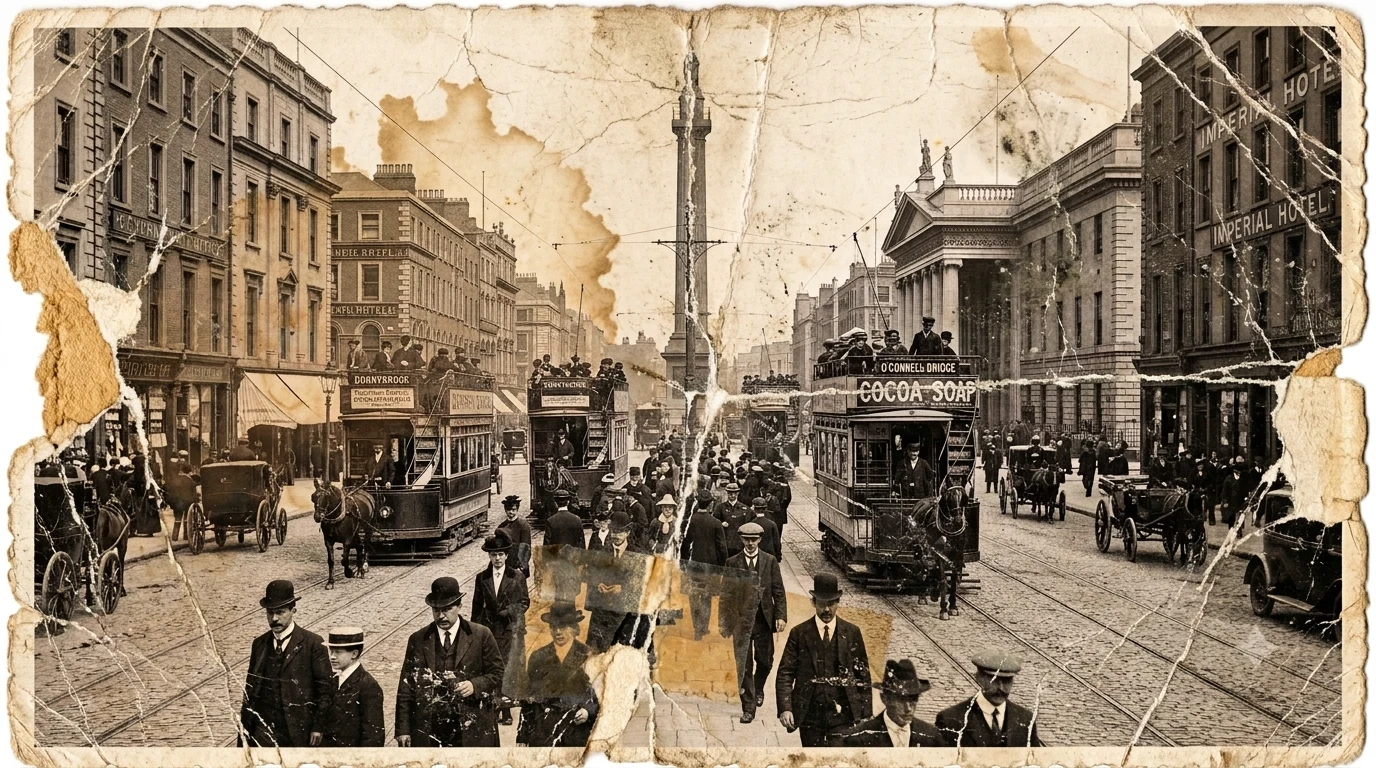
 A closer look at the original
Old & faded prints
Repair scratches, recover faded detail or add colour to a black-and-white photograph.
A little care for the photos you keep.
Bring an old favourite back to life. Brighten a family snapshot. Keep a little more of what matters.
No account needed to explore.
JPEG, PNG or WEBP, up to 20 MB
The original photographCreases, fading and torn edges. Every old print has a story.
Three steps. Take your time.
A family portrait, a holiday snap or a scan of an old print. Start with the one you love.
Restore, brighten or make your own adjustments. Compare with the original as you go.
Keep the result on your device, ready to print or share. Your original stays as it was.
Simple tools, with room to make it yours.
A closer look at the originalRepair scratches, recover faded detail or add colour to a black-and-white photograph.
Bring a little light to a dim snapshot. Adjust the colour, crop the edges and focus on the people.
Save a fresh copy in the size you need. Add your own words, or keep the photograph just as it is.
Choosing a photo opens a working copy. Cropping and adding text happen on your device. When you choose an AI edit, a copy is sent for processing. Save your finished photo before you close the page.
You don't need to know your way around a photo editor.
No. Fotodoc works on a copy in the editor. Saving downloads a new file, leaving the photo you chose untouched. Keep your original backed up separately.
A copy of your photo and your editing instructions are sent to the AI service for processing. AI can change details, including faces, so compare the result with your original before you save it. AI edits use credits.
You can open a photo, explore the tools and save manual edits without an account. AI tools may require sign-in and available credits. The sample opens the same editor as your own photo.
Choose Save photo in the editor, select a size and download your copy. Photos in the editor aren't a permanent backup. Save your work before closing or refreshing the page.